The Linux terminal is a powerful tool that lets you control your system using text commands. It may look complicated at first, but once you learn a few commands, you’ll feel like a pro.
COMMANDS IN LINUX :
First and most importantly go to your home directory through this command. cd ..
After this enter this command : wget http://bit.ly/cli-files
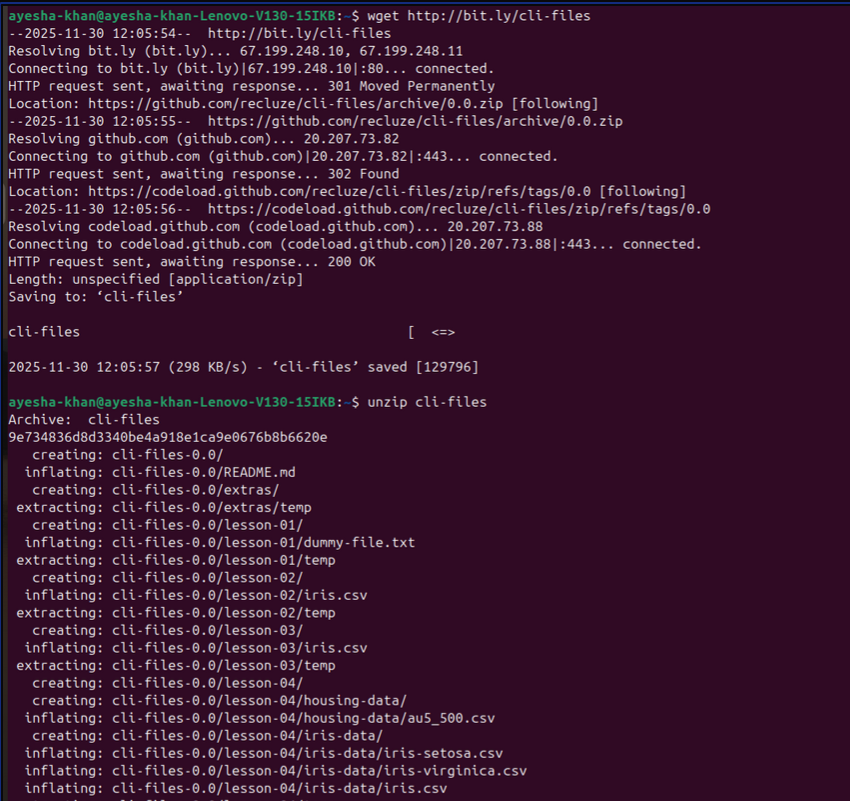
wget (World Wide Web Get) :
It is a command line open in Linux and it is also an open source utility that allows you to retrieve (download) contents from the web servers through http,https or ftp.
Since its a zip file so you have to unzip it enter the given command. unzip cli-files
After this enter the given commands : ls will list the current working directory.
Then enter command cd cli-files-0.0
which means change your current working directory to cli-files-0.0.
After this enter ls command again.
Then make a directory through the given command. mkdir
mkdir means make a new directory (folder).
Then change your directory to that new directory. cd
Then enter command ls which will list nothing because that folder is empty right now.

After this clear your terminal through clear command and change your directory to the home folder through either one of these commands
cd ..
cd -
Then make a new directory again through this commands mkdir -p d1/d2/d3 It will make directories one by one and no error will appear on the terminal.
Then check them one by one through these commands
- cd d1
- ls
- cd d2
- ls
- cd d3
- ls
That cd d3 will show nothing after you give ls command because it is empty.
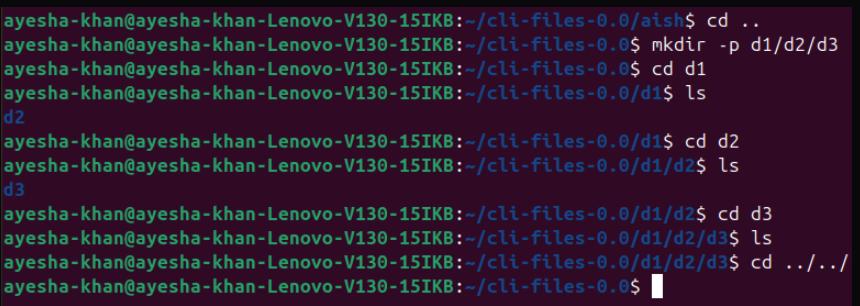
- Then enter command cd ../../../
This will take you to your home folder.
- Now we want to see the directory structure so we enter the given command. ls -R d1
- R is a switch command and it shows directory d1 recursively.
WORKING WITH FILES :
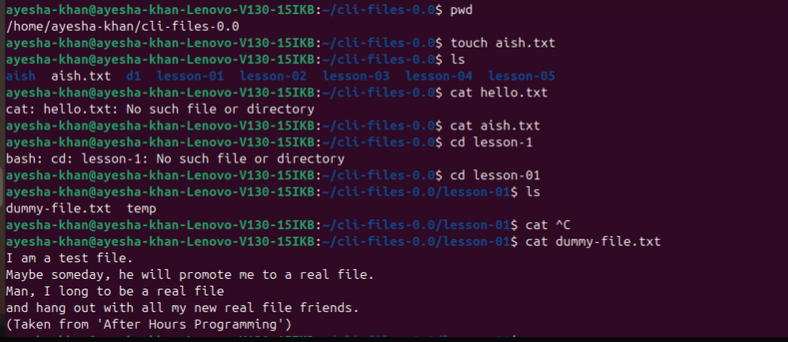
Enter command pwd which means print working directory. It will tell you where exactly you are.
After this , enter command touch file.txt to create a new empty file. Then enter command ls which will list all the files.
Enter the given command : cat file.txt
cat refers to concatenation which means joining files or text. Or it also means open a file and showing its words on the terminal.
Then enter command cd lesson-01 which will change your current working directory to lesson-01.
Enter command ls.
Then enter command : cat dummy-file.txt
It will show all the contents that are in the dummy-file.txt and will display them on the terminal.
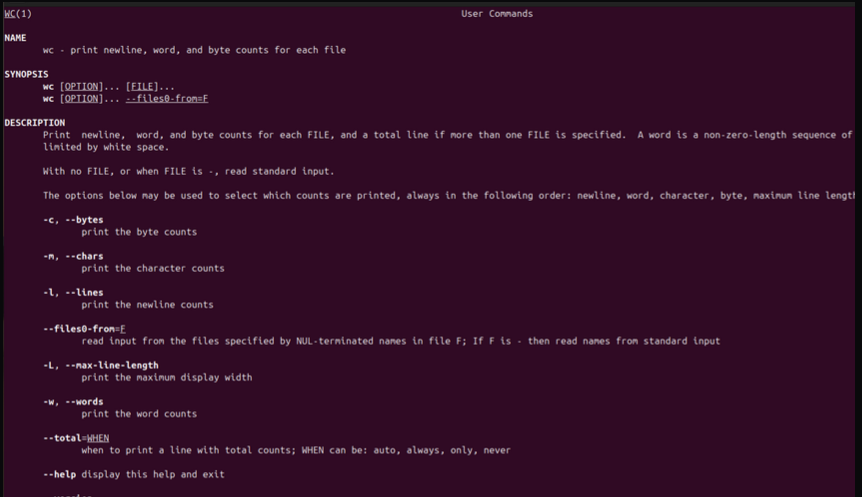
After this we want to know the word count of that dummy-file.txt. so enter command : wc
- wc : It will counts words , lines and bytes in a file.
If you came across a command & you don’t know what that means you can enter this meta command (commands that control the shell)
whatis
- This meta command gives a one line description of a command.
But when your database is not installed or updated then this will show an error like
nothing appropriate or whatis database not found or no output at all. For updating the database use command : sudo mandb
- This will update your manual database (Detailed documents explaining commands, files & system calls).
For installing the database use command : sudo apt install man-db
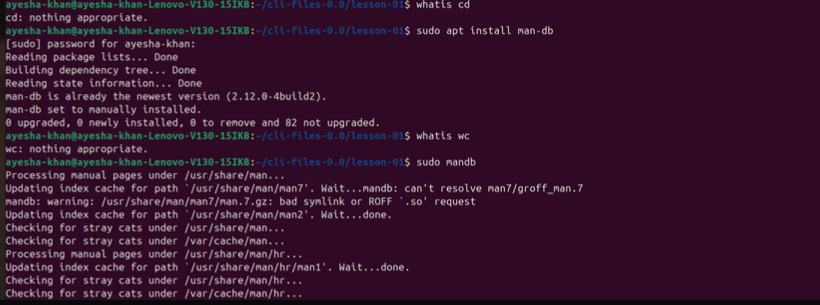
After this when i enter command whatis cd it doesn’t show any error.

And if you want to know each and everything about a command you can enter this command : man commands AND man : stands for manual. Press q to quit.
FOUR WAYS TO ENTER THE SAME COMMAND THAT YOU’VE PREVIOUSLY ENTERED:
- Up arrow key.
- Ctrl + R and type part it’ll fill itself.
- history —> full list along with numbers.
- bang like !.
PIPES
Firstly , enter command pwd and make sure that you are in the working directory of cli-files-0.0.
After that enter command cd lesson-02 and change your current working directory to lesson-02. You’ll get iris.csv file . Npw enter this command : cat iris.csv -To see the contents of iris.csv file. -You’ll get the dataset of classes belonging to three different species of flowers.
After this enter command wc iriis.csv which will count the words , lines and bytes.
Now change your directory to lesson-02 through cd lesson-02 .Then enter ls where you’ll see iris.csv file
Change your directory to iris.csv file cd iris.csv. It has all the information related to flowers .
For reading the contents of the iris.csv file enter this command cat iris.csv
- It will display 150 flower lines .
Then wc iris.csv
- Since it’s an extremely large file so enter this command head iris.csv
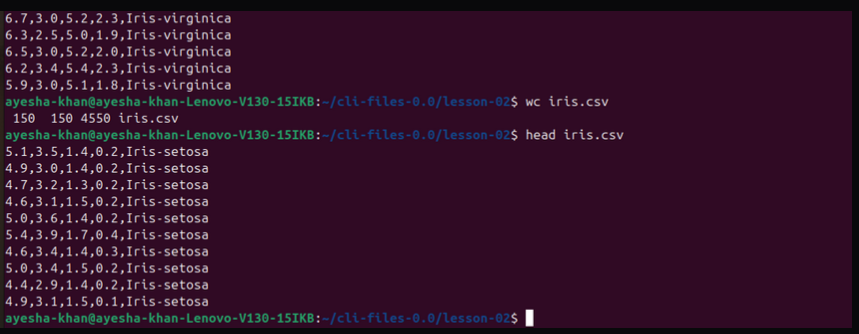
This command will print the first 10 lines of the iris.csv file on the terminal . It is useful because some files are big and it helps you to sneak peak and count without reading everything .
Pipes ( | ) :
Tools that take the output of one command and send it as input to another command.
Enter command : cat iris.csv | wc
- this command will take output of cat iris.csv and send it as input to wc which will display word count.
Grep :
Find specific lines , words or patterns inside files or text .
Enter given commands :
- grep “setosa” iris.csv
- cat iris.csv | wc
- cat iris.csv | grep “setosa”
- cat iris.csv | grep “setosa” | wc
- cat iris.csv | grep “3.5”
- cat iris.csv | grep “setosa” | grep “3.5”
- cat iris.csv | grep “setosa” | grep “3.5” | wc
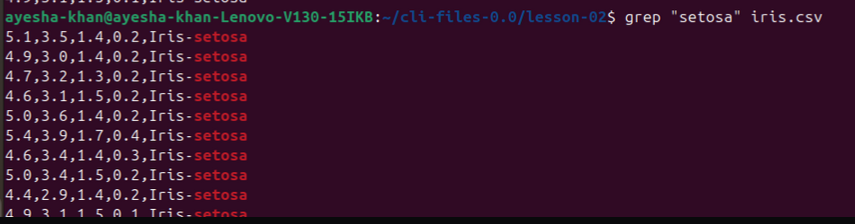
-grep setosa will only print those flower names which has setosa in their name.
Now change your directory to lesson-03 and do ls after this enter command .
- cd ..
- cd lesson-03
- ls
- echo “something”
- cat temp
- echo “something” > temp
- ls temp
- cat temp
- cat iris.csv | grep “setosa”
- cat iris.csv | grep “setosa” | setosa.csv
- cat iris.csv | grep “setosa” > setosa.csv
- echo means to output something to the console.
- cat temp to read every thing in that file.
- > stands for redirecting which means instead of showing output to the console it redirects it to the file.
For renaming a file :
Use command mv which means move and most of the time it is used for renaming a file.
For copying a file :
Enter command cp original file new file. For renaming and copying a directory : Enter command mv file directory/file. and cp -r directory.
For removing file and directory :
file : rm file directory : rmdir directory or rm directory/file
CONCLUSION :
Linux commands give users fast and powerful control over their system. With simple commands like ls , cd , mv , cp , and rm, you can navigate, manage files, and organize your workspace. Tools like cat , echo , grep , pipes ( | ), and redirection (>) help you handle and filter text easily. Meta-commands and shell shortcuts make work faster and more efficient. Overall, learning Linux commands improves productivity and gives you complete control over the operating system.