“Your PC doesn’t have to belong to just one operating system. Imagine being able to start your day writing code in a developer-friendly environment, and later unwind with your favorite Windows-only game — all without buying new hardware. This setup isn’t magic; it’s about learning how to make multiple operating systems share the same space, smoothly and efficiently.”
What Are Ubuntu and Dual Booting?
What is Ubuntu?
Ubuntu is a Linux-based operating system built on the solid foundation of Debian, developed and maintained by Canonical Ltd. It’s designed to deliver a balance between performance, security, and usability — whether you’re running it on a personal computer, a server, or in the cloud making it a popular choice for beginners, developers, and professionals alike.
What is Dual booting?
Dual booting is the practice of installing two (or more) operating systems on a single computer and choosing which one to start each time the machine boots up. Instead of running one system inside another through virtualization, both operating systems are installed directly on separate disk partitions, allowing each to use the computer’s hardware natively for full performance.
Now that you understand:
- What Ubuntu is
- What dual booting means
Let’s get into the world of dual booting 🚀
STEP 1 : INSTALLATION OF UBUNTU ISO IMAGE
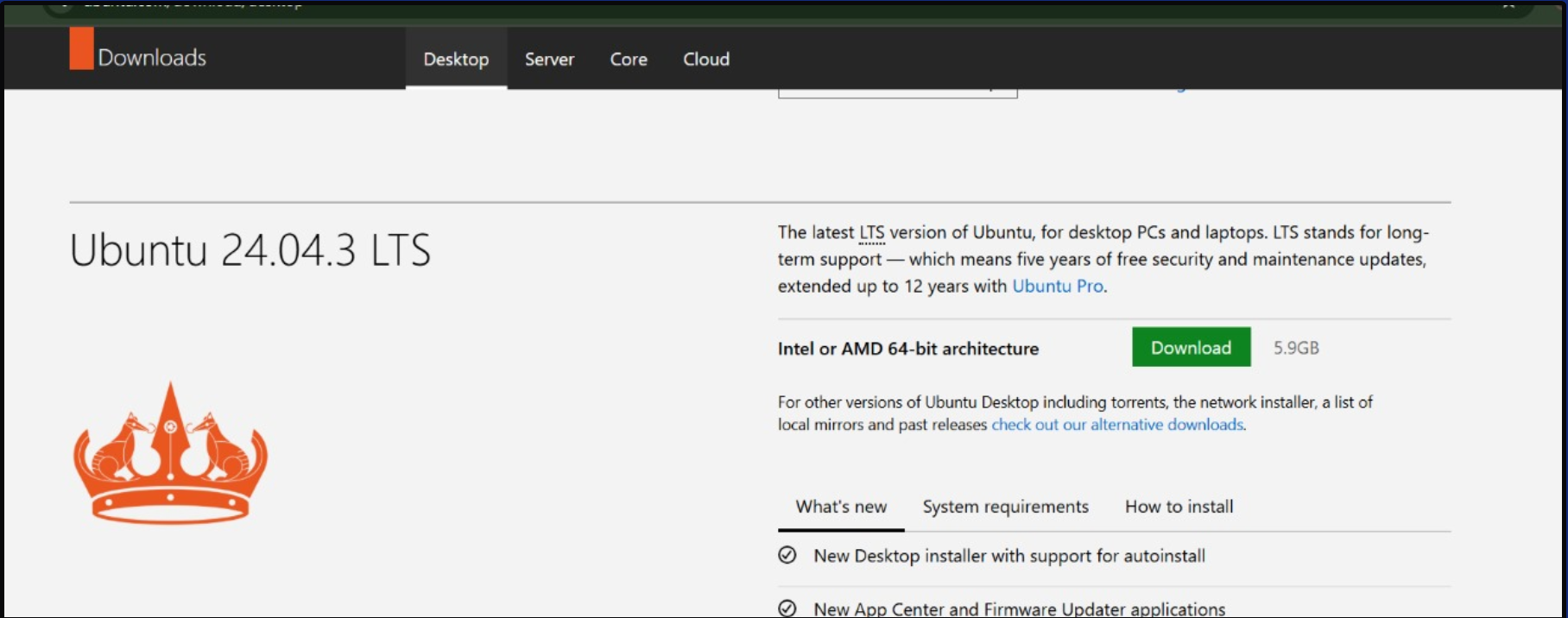
Firstly , we should download the Ubuntu 24.04.3 iso image , i did dual booting in Ubuntu 24.04.3 and I would suggest you to download this version
STEP 2 : Create Free Disk Space for Ubuntu
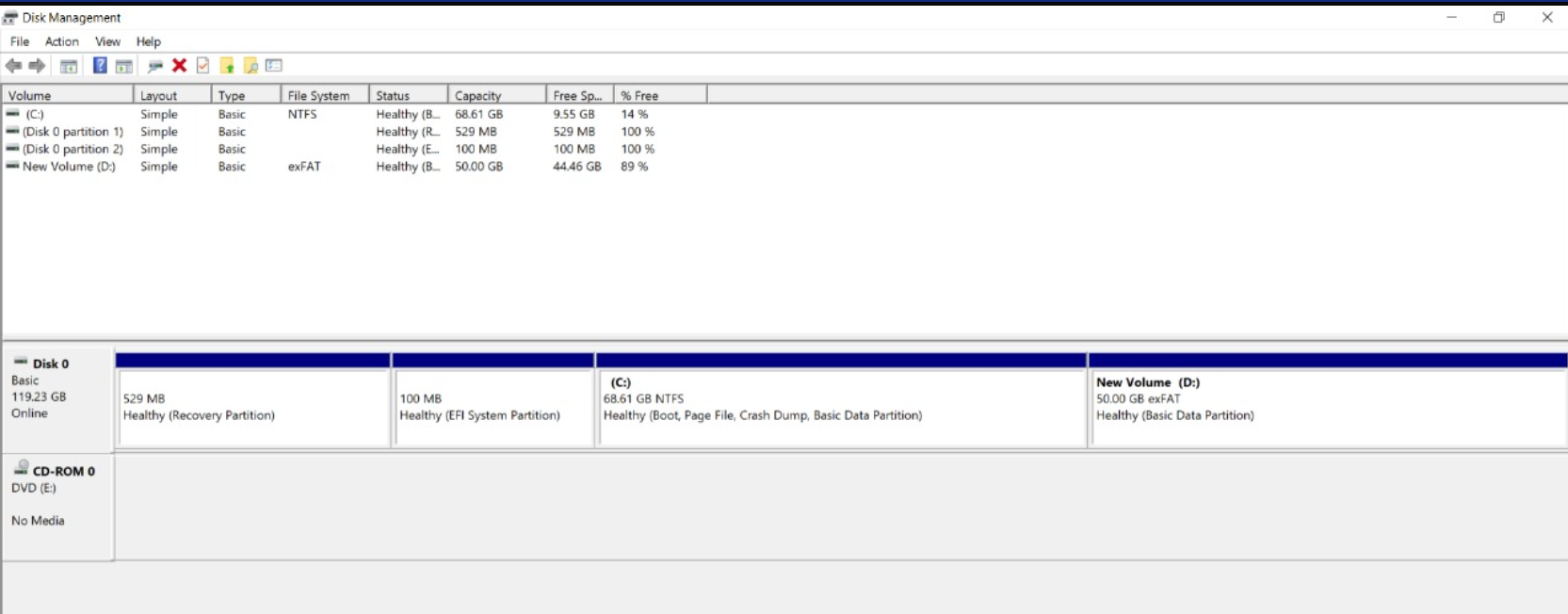
After installing Ubuntu 24.04.3 iso image , divide your hard disk into two equal parts and that one hard disk which has more free space such as right click on that disk and there would be an option of shrink volume select that as a result you will see that a new disk will be created which will be used for Linux.
STEP 3 : Install Rufus
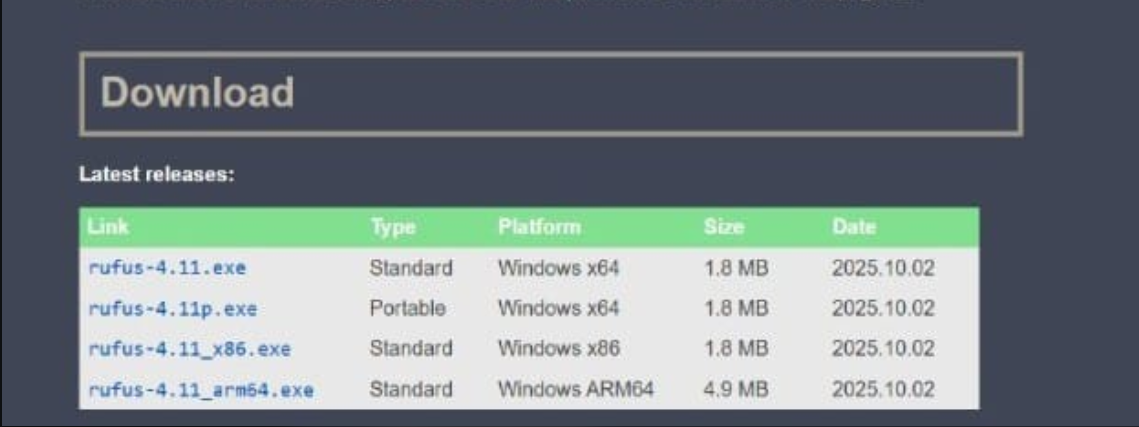
Now before moving towards bootable USB , firstly install latest Rufus (mine is Rufus 4.11.exe)
STEP 4 : HOW TO MAKE A BOOTABLE USB ?
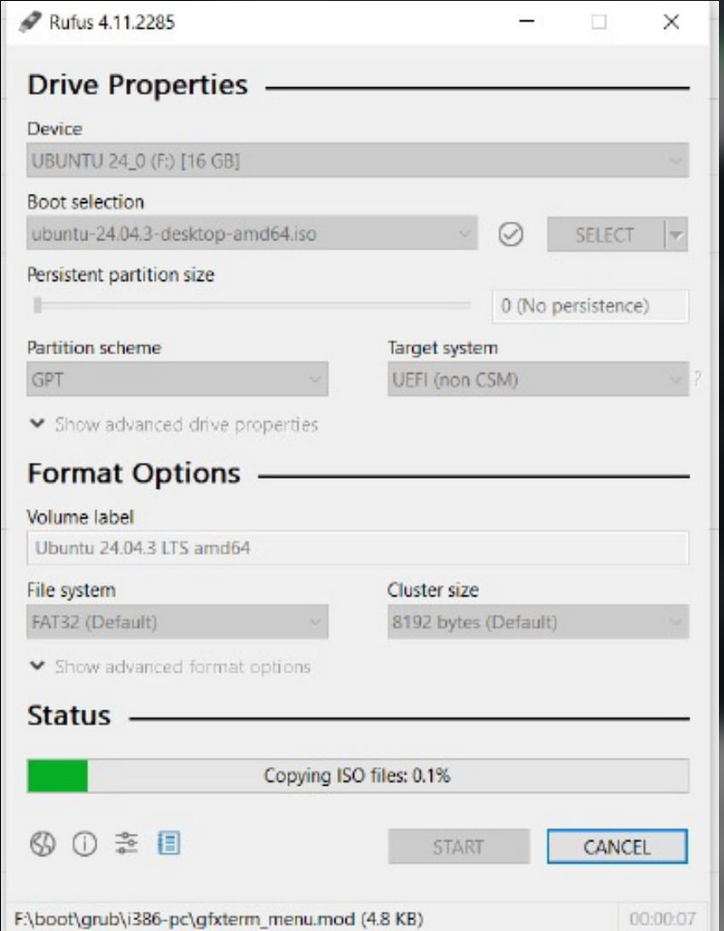
Insert your USB ( make sure that your USB is about 32 GB and it should be empty ) now open Rufus 4.11.exe .
Select DEVICE option and carefully select that USB name that you want to make bootable
Then in BOOT SELECTION select that Ubuntu 24.04.3 iso image
Then click on SELECT
AFTER doing this , Check your partition scheme (whether it’s GPT or MBR) and select according to your partition scheme (How to know your partition scheme ? Here you would go to disk management and select on disk 0 and then select properties and in that you’d go to the volume section where you would see your partition scheme )
Then select on START option which includes copying of iso files
STEP 5 : USB Ready Confirmation
Once you see that READY message click on close (it means that your USB is successfully prepared for dual booting )
STEP 6 : Enter Advanced Startup
Click on WINDOWS+l which will lock your screen. Now press SHIFT and SHUT DOWN your PC
STEP 7 : Enter UEFI Firmware Settings
Open your PC here you would see :
Choose an option , you should select on TROUBLE SHOOT
After that click on ADVANCED OPTIONS
Here you should click on UEFI FIRMWARE SETTINGS , then click on restart
Click on USB HDD and move that to the top
Then press ENTER.
STEP 8 : Start Ubuntu Installer
Select TRY OR INSTALL UBUNTU
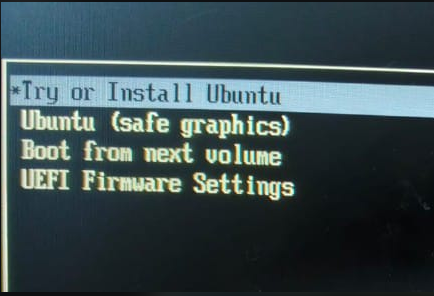
STEP 9 : Ubuntu Installation Settings
After this , the ubuntu will start installing
Select your keyboard layout
Select WI-Fi
Interactive installation
Default installation
Install third-party software for graphics and Wi-Fi hardware
Select manual partitioning and create a free space for Ubuntu
After this , Enter your name , username and password
STEP 10 : Finish Installation
Click Install Once completed, click Close
🎉 Your dual boot setup is complete!
Final Words
This is the correct and safe way to dual boot Ubuntu with Windows. Take your time, follow each step carefully, and you’ll be running two operating systems on one machine like a pro.
Good luck, and welcome to the Linux world 🐧