BASH SCRIPTING
BASH :
BASH stands for BOURNE AGAIN SHELL (LINUX OR UNIX SHELL).
SCRIPT :
A file containing a sequence of instructions executed by the BASH PROGRAM step by step.
A Bash script is a plain text file which contains a series of commands. These commands are a mixture of commands we would normally type ourselves on the command line (such as ls or cd) and commands we could type on the command line but generally wouldn’t . An important point to remember though is:
Anything you can run normally on the command line can be put into a script and it will do exactly the same thing.
BENEFITS OF BASH SCRIPTING :
1 . AUTOMATION :
Shell scripts allow you to automate repetitive tasks and processes, saving time and reducing the risk of errors that can occur with manual execution - Letting the computer performs tasks without human intervention.
2 . ACCESSIBILITY :
Shell scripts are easy to write and don’t require any special tools or software. They can be edited using any text editor, and most operating systems have a built-in shell interpreter.
STEPS FOR DOING BASH SCRIPTING :
STEP 1 : DETERMINING YOUR SHELL TYPE IN LINUX :
Your shell type in LINUX can be determined through this command :
ps
ps stands for process status.
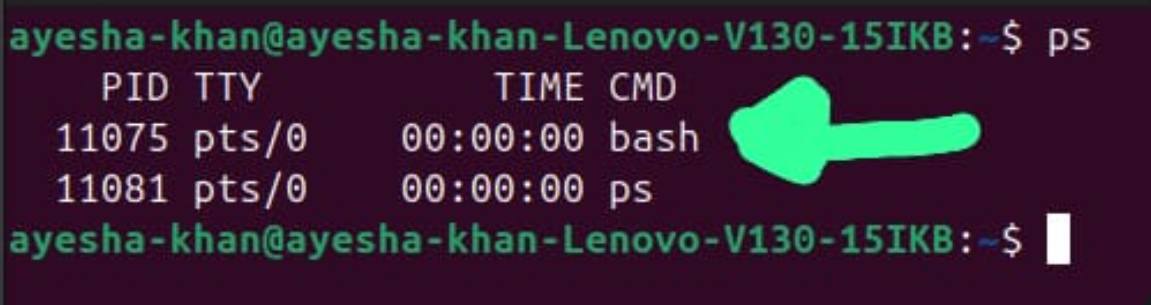
Mine is bash , you should check yours through this way.
STEP 2 : CREATING A SCRIPT FILE :
Firstly , we’ll create a script file through this command :
nano file.sh
And the file name must end with “sh“ to show that this file is a BASH SCRIPT. This also helps in distinguishing scripts from other files.
nano is a TERMINAL BASED TEXT EDITOR. It allows you to create, view, and edit text files directly from the command line.
STEP 3 : WRITING A SCRIPT :
SHEBANG: SHEBANG tells the shell to execute your file via a BASH SHELL. 1st line of your BASH SCRIPT should be :
#!/bin/bash
/bin/bash shows that bin is a folder that contains important system commands and bash is a file.
bin —> binary because programs are stored as binary executable files and not machine code.
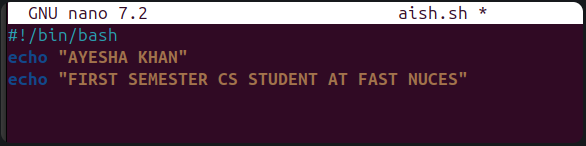
You can write anything in the script.
STEP 4 : EXECUTING THE SCRIPT :
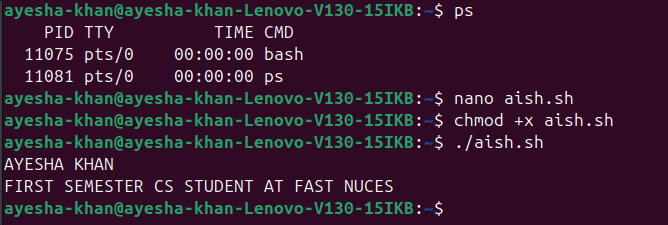
Execute this file through this command :
chmod +x file.sh
chmod refers to change mode
- chmod: Command used to change the permission of the file in LINUX .
- +x: It gives permission to the owner of the file to execute it .
STEP 5 : RUNNING THE BASH SCRIPT :
A script can be run through this command :
./file.sh
./ : looks for the file in the current directory.
STEP 6 : COMMENTS IN BASH SCRIPTING :
Comments in bash scripting starts with a BASH (#) . It is helpful in documenting the code .
STEP 7 : VARIABLES IN BASH SCRIPTING :
VARIABLES :
Variables are used to store data and they also lets you read , access and manipulate data throughout your script.And there are no data types in bash scripting .
In BASH SCRIPTING, a variable is capable of storing NUMERIC VALUES , INDIVIDUAL CHARACTERS or STRING OF CHARACTERS .
STEP 1 : STORING DATA :
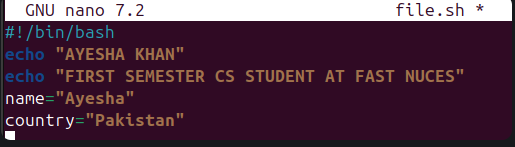
We can store data directly in variables but that data should be enclosed in double quotes and there should be no space in between the equal sign and stored data .
such as :
variablename="value"
STEP 2 : ACCESSING DATA :
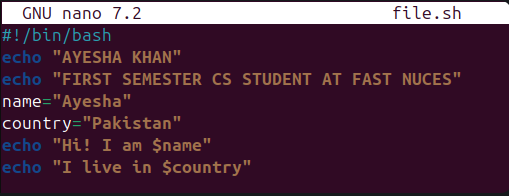
Retrieving the value that is already stored in a variable , array , file or command output .
OR
Accessing data is the process of reading or using stored information.
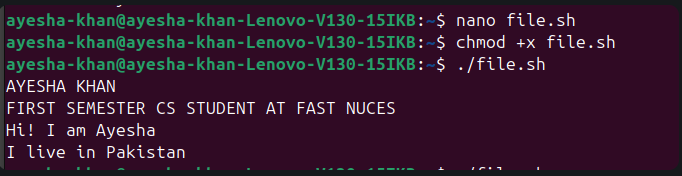
$ = It is required to access an existing variable ‘s value .
INPUT:
OUTPUT:
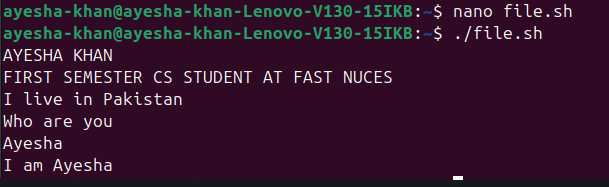
STEP 3 : TAKING INPUT FROM THE USER :
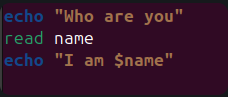
It is done using this command:
read
INPUT:
OUTPUT:
COMMON VARIABLE OPERATIONS :
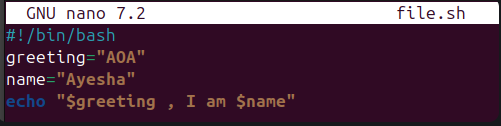
Variables can be used in various operations such as : concatenation and arithmetic .
CONCATENATION :
INPUT:
OUTPUT:

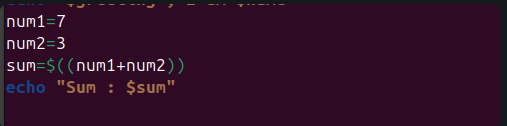
ARITHMETIC :
For this you must use double brackets like : ((hi))
INPUT:
OUTPUT:

INTEGER COMPARISON :
In integer comparison , we use SQUARE BRACKETS [] , they are called TEST COMMANDS in BASH .
They are used to check conditions like COMPARING NUMBERS , STRINGS OR CHECKING THE EXISTENCE OF A FILE .
(-eq) = is equal to if [ “$a “ -eq “$b” ]
(-ne) = is not equal to if [ “$a” -ne “$b” }
(-gt) = is greater than if [ “$a” -gt “$b” ]
(-ge) = is greater than or equal to if [ “$a” -ge “$b” ]
(-lt) = is less than if [ “$a” -lt “$b” ]
(-le) = is less than or equal than if [ “$a” -le “$b” ]
ARITHMETIC COMPARISON :
Here we would use double brackets
(<) is less than - ( (“$a” < “$b” ) )
(<=) is less than or equal - ( ( “$a” <= “$b” ) )
(>) is greater than - ( (“$a” > “$b” ) )
(>=) is greater than or equal to - ( ( “$a” >= “$b” ) )
STRING COMPARISON :
(=) is equal to if [ “$a” = “$b” ]
(==) is equal to if [ “$a” == “$b” ]
(!=) is not equal to if [ “$a” != “$b” ]
(<) is less than , in ASCII alphabetical order if [ [ “$a “ < “$b” ]]
(>) is greater than , in ASCII alphabetical order if [ [ “$a” > “$b ] ]
(-z) string is null , that is , has zero length if [-z “$a“]
DECISION CONTROL IN BASH SCRIPTS :
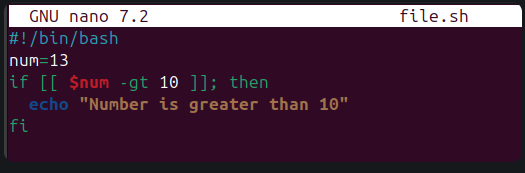
if BLOCK :
- If condition is enclosed in SQUARE BRACKETS [].
- Statements ends with “fi“ which is “if“ spelled backwards marking the end of “if“ block.
- In Bash , spaces around [ ] are compulsory , without them , the if block breaks.
INPUT:
OUTPUT:

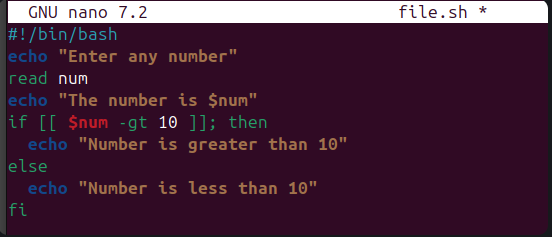
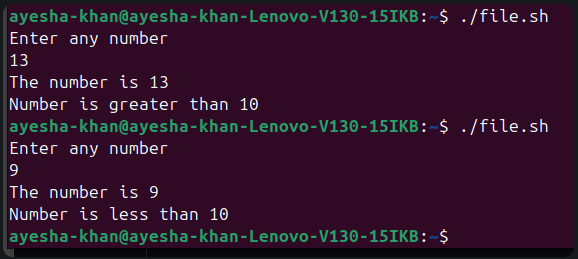
IF-ELSE BLOCK :
INPUT:
OUTPUT:
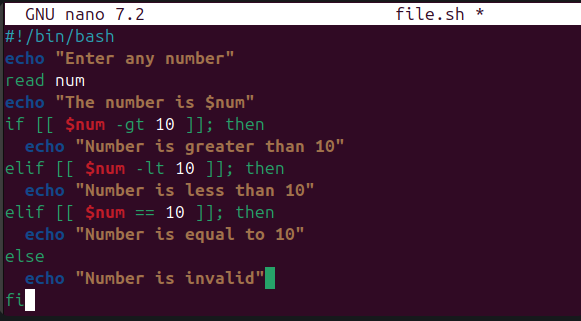
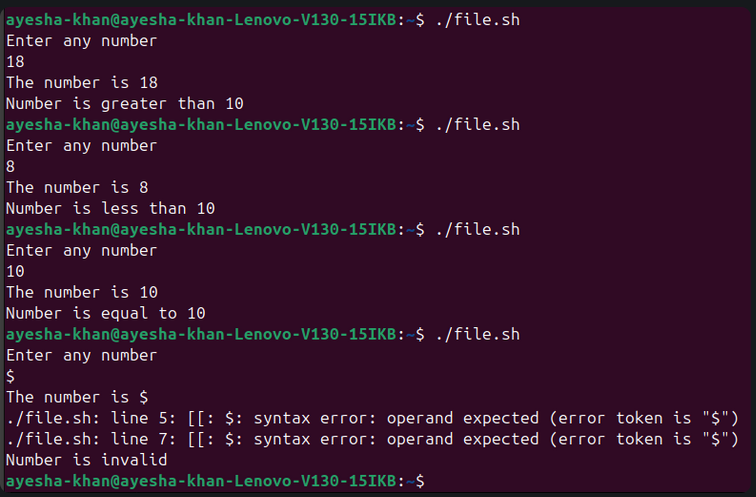
NESTED IF-ELSE :
INPUT:
OUTPUT:
LOOPS :
TYPES OF LOOPS IN BASH :
- FOR LOOP
- WHILE LOOP
- UNTIL LOOP
FOR LOOP :
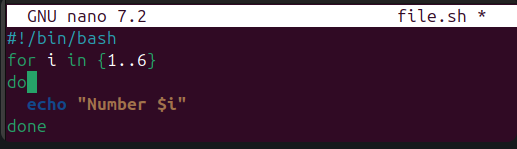
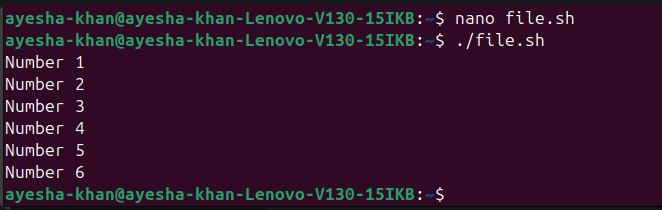
This loop is used when the ending condition is known . They are useful for repeating tasks a specific number of times.
The “for“ keyword is followed by a variable name, a range of values, “do“ keyword marks the start of the loop block and “done“ keyword indicates the end of the for loop block.
INPUT:
OUTPUT:
WHILE LOOP :
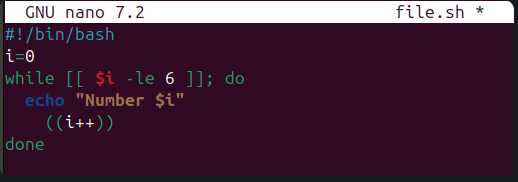
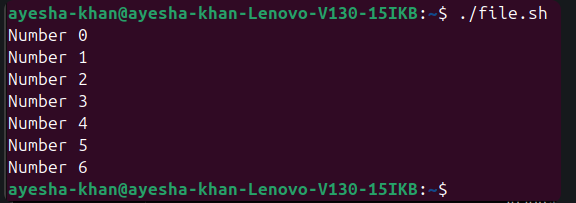
While loops execute a block of code as long as a specified condition is true.
INPUT:
OUTPUT:
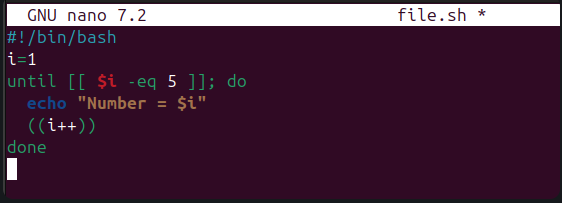
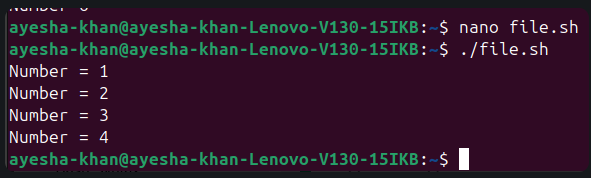
UNTIL LOOP :
Until loops are similar to while loops, but they execute until a specified condition becomes true.
INPUT:
OUTPUT:
CRON SCHEDULING SYSTEM :
CRONJOB :
CronJob are scheduled tasks that allows you to run scripts and commands at specific intervals.
WHY USE CRONJOBS :
To automate repetitive tasks and to ensure that they run at scheduled times without manual intervention.
FOR EXAMPLE :
Backing up files and sending email reports etc
HOW DOES CRONJOB WORK ?
CronJob uses a daemon(a background process) called CRON to execute scheduled tasks. And the configuration of these tasks is stored in a file called CRONTAB.
CRON :
- A daemon(a background process) in LINUX.
- It runs automatically in the background.
- Its job is to execute scheduled tasks at specific intervals.
CRONTAB :
A file or command used to schedule CRONJOBS.
CRONTAB COMMANDS :
- crontab -e –> To edit crontab file by adding CRONJOBS.
- crontab -l –> To view all your scheduled CRONJOBS.
- crontab -r –> To delete all scheduled CRONJOBS.
BASIC FORMATE OF CRONJOB :
* * * * * /path/to/script.sh
MINUTES(0 - 59) | HOUR(0 - 23) | DAY OF MONTH(1 - 31) | MONTH(1 - 12) | DAY OF WEEK(0 - 7)
CONCLUSION :
Bash scripting is a simple and powerful way to automate tasks in Linux. It helps save time, reduce effort, and improve efficiency by turning repetitive commands into automated processes.